
How to Report Bugs and Request Features in LordOS
 By Wilson Pereira Medina 6 min read
Translate
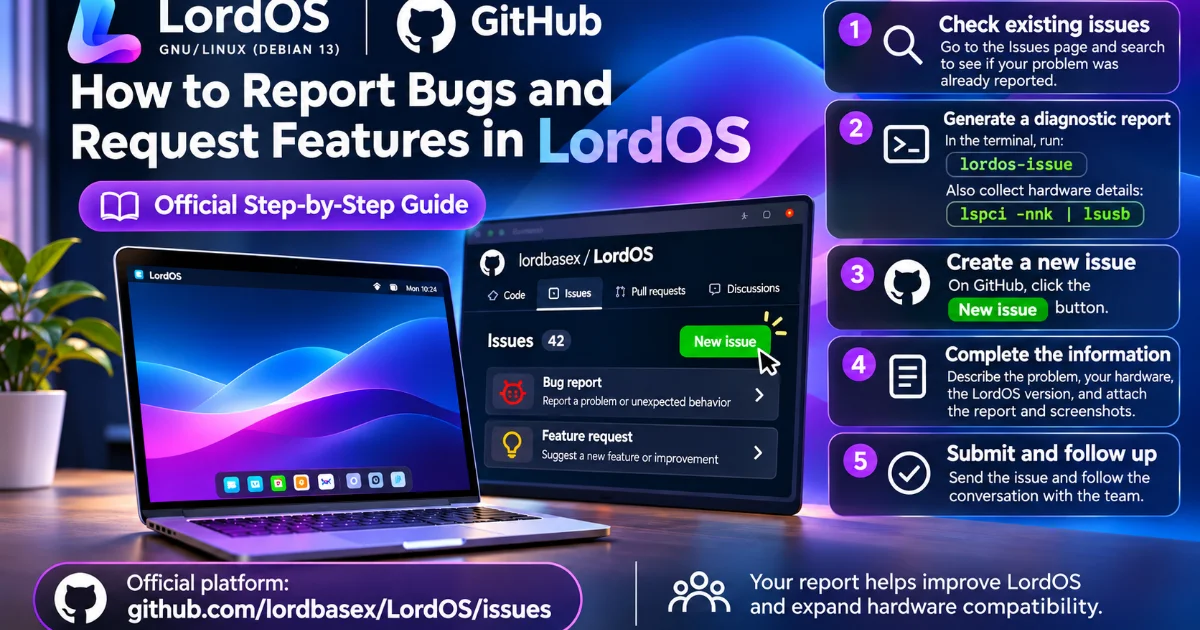
How to Report Bugs and Request Features in LordOS — Official GitHub Guide
Hi everyone!
First of all, thank you to everyone who has been testing LordOS, sharing screenshots, reporting issues, and helping the project grow.
I've noticed several people reporting hardware compatibility problems, particularly with Wi-Fi drivers on older laptops, MacBooks, and other devices.
I really appreciate all this feedback, and I'd like to explain how we can organize it so that these reports become useful for everyone.
Reddit is a great place to discuss problems and help each other, but GitHub Issues is our official platform for bug reports, hardware compatibility issues, and feature requests.
By using GitHub, we can track each problem, investigate possible solutions, document fixes, and reference them in future releases and the changelog.
Here's how to report an issue properly.
Step 1 — Check if your issue has already been reported
Before opening a new issue, visit:
https://github.com/lordbasex/LordOS/issues
Use the search bar to look for your problem. Remember to check both open and closed issues.
For example, you could search for:
- Broadcom Wi-Fi not working
- MacBook Pro wireless driver
- Bluetooth not detected
- Black screen after boot
- Touchpad not working
If someone has already reported the same problem, add a comment with your hardware details and experience instead of creating a duplicate.
If the issue was previously closed but the problem still exists, leave a comment explaining what is happening and ask us to reopen it if necessary.
Step 2 — Generate your LordOS diagnostic report
LordOS includes a diagnostic command specifically designed to help users report problems.
Open the Terminal and execute:
lordos-issue
This command is available from LordOS 0.8.8 onward.
It generates a diagnostic report in your home directory:
~/lordos-issue-<date>.txt
The report includes useful information about your LordOS installation and hardware, with personal names and addresses automatically replaced.
Nothing is sent automatically.
Please open the generated file, review its contents, and include the relevant information in your GitHub issue.
If you're using an older release where the command isn't available, please mention your LordOS version and provide the hardware information manually.
Step 3 — Identify your hardware
For hardware-related issues, especially Wi-Fi, Bluetooth, graphics, audio, or USB problems, we need to know exactly which controllers your machine uses.
Please run:
lspci -nnk
lsusb
uname -r
What do these commands do?
lspci -nnklists PCI hardware, including devices such as wireless cards, Ethernet controllers and graphics adapters, along with driver information.lsusbidentifies connected USB devices and their vendor/product IDs.uname -rshows the running Linux kernel version.
For Wi-Fi issues, these additional commands may help:
rfkill list
ip link
If firmware or driver loading is failing, the kernel log may provide more information:
sudo journalctl -b -k | grep -Ei 'firmware|wifi|wlan|brcm|iwlwifi|rtl'
Please review the output and remove any private information before sharing it.
Knowing the exact chipset is much more useful than simply knowing that your computer has an Intel i7 processor or is a MacBook Pro.
For example, two computers from the same manufacturer may use completely different wireless controllers.
Step 4 — Open a new issue on GitHub
Go to:
https://github.com/lordbasex/LordOS/issues
Follow these steps:
- Sign in to your GitHub account. If you don't have one, you can create one for free.
- Click the New issue button.
- Choose Bug report if something isn't working, or Feature request if you're suggesting an improvement.
- Complete the form with as much detail as possible.
- Include your diagnostic report and relevant command output.
- Attach screenshots if they help demonstrate the problem.
- Click Submit new issue.
Please open a separate issue for each unrelated problem. This makes tracking and resolving them much easier.
If you need help using GitHub, its official guide includes screenshots of the process:
https://docs.github.com/en/issues/tracking-your-work-with-issues/using-issues/creating-an-issue
Step 5 — What information should your bug report contain?
Here's an example of a useful report.
Title:
[Wi-Fi] Broadcom wireless adapter not working on MacBook Pro 2014
Hardware:
- Computer: MacBook Pro, exact model identifier
- CPU: Intel Core i5/i7, exact model if known
- RAM: 8 GB
- Wi-Fi chipset: Exact model from
lspci -nnk - Installation: LordOS Live USB or installed system
- LordOS version: Version shown in About LordOS
Problem:
The Wi-Fi controller is detected, but no wireless networks appear.
Expected behavior:
LordOS should detect the wireless adapter and allow connecting to available networks.
Actual behavior:
The wireless adapter is unavailable, and only wired networking works.
Steps to reproduce:
- Boot LordOS.
- Open the network settings.
- Enable Wi-Fi.
- Try scanning for available networks.
- Describe any error messages or unexpected behavior.
Diagnostic information:
Paste the output generated by lordos-issue and, when relevant, lspci -nnk and lsusb.
Additional information:
Attach screenshots, relevant logs, and links to similar reports or working solutions from other Linux distributions.
The more precise the report, the easier it is for us to investigate.
Step 6 — Search the Debian and Linux communities
LordOS is built on Debian 13, so some hardware compatibility issues may already have documented solutions in the Debian or broader Linux community.
For example, if you have a MacBook Pro with a Broadcom wireless adapter, try searching the internet using your exact MacBook model and Wi-Fi chipset.
Look for reports involving Debian 13, Linux firmware packages, kernel modules, or other distributions running similar kernel versions.
If you find someone who has already solved the same problem, please share the link in your GitHub issue.
Even if the solution comes from another distribution, it may help us identify the necessary changes for LordOS.
Please don't assume that every driver solution is compatible, and avoid running unknown installation scripts without reviewing them.
Step 7 — Follow the issue and help us verify the fix
Once you've opened an issue, GitHub gives it a permanent URL.
You can use that link to follow the discussion, provide additional information, and see when a fix becomes available.
If we prepare a solution, we may ask you to test it on your actual hardware.
This is especially important with older laptops, MacBooks, and unusual controllers, because we don't necessarily have access to the same devices.
When a problem is fixed, we can link the solution to the issue and reference the corresponding release notes and changelog.
That way, the work doesn't get lost in a Reddit conversation, and other users with the same problem can find it later.
You can follow LordOS releases here:
https://github.com/lordbasex/LordOS/releases
And read the changelog here:
https://github.com/lordbasex/LordOS/blob/main/CHANGELOG.md
Step 8 — Security issues must be reported privately
Please do not publish passwords, access tokens, private keys, personal data, or sensitive information in GitHub issues.
If you discover a security vulnerability, follow our security reporting policy instead:
https://lordos.org/legal/security
Reddit is still our community!
I absolutely want people to continue asking questions and discussing LordOS here on Reddit.
If you encounter a problem, feel free to ask for help here. But please create a GitHub issue as well, and share its link in the discussion.
That helps us keep everything organized and prevents useful technical information from disappearing into old threads.
And if you've installed LordOS on your computer, I'd also love to see your setup!
Use the "My Desktop" flair to share screenshots, hardware photos, performance results, and your experience with LordOS.
Both positive feedback and bug reports help improve the project.
Every hardware test, every issue, and every documented solution helps make LordOS better for the next person.
Thank you for being part of the project!
Federico
LordOS Creator